Older Version
Newer Version
 Alyce
Jan 27, 2006
Alyce
Jan 27, 2006
What Are Sprites:
Wikipedia suggests that a Sprite is a class of preternatural legendary creatures commonly associated with elves, fairies, pixies, and spirits. Of course this is not what is meant when Programmers are discussing them in most cases.
Within the realm of Liberty Basic programming we are referring to a two-dimensional pre-rendered graphics figure, usually containing some transparency. Liberty Basic implements sprites using Windows GDI function calls that allow manipulation of graphics with masked areas using multiple raster operations, first applying the mask to the background, then the sprite image. This is not critical to understand in order to use Sprites, but may help explain their operation if you wish to dig deeper into this area.
Create a Sprite:
Sprites are created by selecting a suitable graphic (in bitmap form) and applying a mask.- Select an image such as the fairy pictured above.
- Apply a black background to all parts of the image that must be invisible in the finished image. True black must be used, and that is RGB(0,0,0). The image then looks like this with a black background:

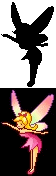
- Create a mask. Make a copy of the image. Change all background pixels from black to white. Any part of the image that is to be invisible in the sprite must be pure white, which is RGB (255,255,255). Every other pixel must be black, which is RGB (0,0,0). That is, each part of the image that is to be transparent must be white in the mask, while each part that is to be visible must be black. The mask for the fairy looks like this:

- Create an image that is the same width as the fairy image, but twice the height. Paste the mask part of the sprite onto the top of this double-height image, and paste the fairy part of the sprite on the bottom. Save this mask-over-sprite image to disk in bitmap format. The finished sprite looks like this:
Another way to create a sprite and mask.
The masking step can be done with this Liberty Basic program found in the helpfile. If you use this program, it will consider that all black pixels in the original image should be transparent in the finished sprite. If your image must contain black pixels, such as the nose of a dog, black shoes on a person, etc. then you can handle it one of two ways. You can either edit the mask by hand after you've used the masking code, and color the mask part so that all black pixels in the image are also black in the
Want to know more?
Read the entire Liberty BASIC Helpfile section on Sprites. It explains what sprites are, how they work, and how to use them. There are plenty of pictures.Next, check out the articles in the Liberty BASIC Newsletter that pertain to sprites. Download the archives to get all of the images needed to run the demonstration programs.
http://groups.yahoo.com/group/lbnews/
http://babek.info/libertybasicfiles/lbnews/
Beginning Game Programming by Richard Ryles
This series can be found in the following issues:
- 109
- 110
- 111
- 118
Sprite Bytes by Alyce Watson
This series can be found in the following issues:
- 119
- 120
- 121
- 122
- 124
- 125
- 126
- 128
- 129
- 132
- 133
- 134
- 137
You can use Game Workshop to create a skeleton for your game. The standalone version is available here:
It is also part of Liberty BASIC Workshop, available here:
Add your favorite sprite resources!